The agent co-pilot: Native to your help desk, built around context
Flexivity sits inside the Zendesk or osTicket interface your agents already use, and gives them the context to decide and act in seconds.

In the last post, we walked through Progressive Autonomy — how Flexivity decides what the AI does with each class of tickets, from leaving them alone to resolving them end-to-end. That covers the AI-facing half of the system.
This post is about the other half: what happens when a ticket needs a person. At every Progressive Autonomy level — the default Assist, the handoffs from Reply, Clarify, or Resolve, the tickets routed to Gated for policy reasons — an agent eventually opens the ticket and has to decide what to do.
That’s where the co-pilot lives.
The handover problem
Picking up a ticket is work. Not the reply itself — the context-building before the reply.
A ticket that’s been bouncing between agents for a week has a thread the new owner needs to read. A ticket at Assist might have a straightforward answer, but the agent still has to look up the right article and glance at policy. A ticket just escalated from autonomous handling arrives with history — the AI tried something, something didn’t work, now it’s a person’s problem — and the agent needs to figure out where things stand.
Historically that’s twenty-five messages to read, three browser tabs to open, and a few minutes of mental setup before you can even start thinking about the reply.
The co-pilot collapses that. Three paragraphs instead of twenty-five messages. Articles ranked and linked, right there. Attributes already recorded. Sentiment at the top, so you know how the customer feels before you read anything. If the AI drafted a reply, it’s one click away from the reply field.
Most tickets, in most deployments, end up at Assist — the AI drafts, the agent ships. The co-pilot is what makes that fast enough to actually move the needle on handle time.
Native to the help desk your agents already use
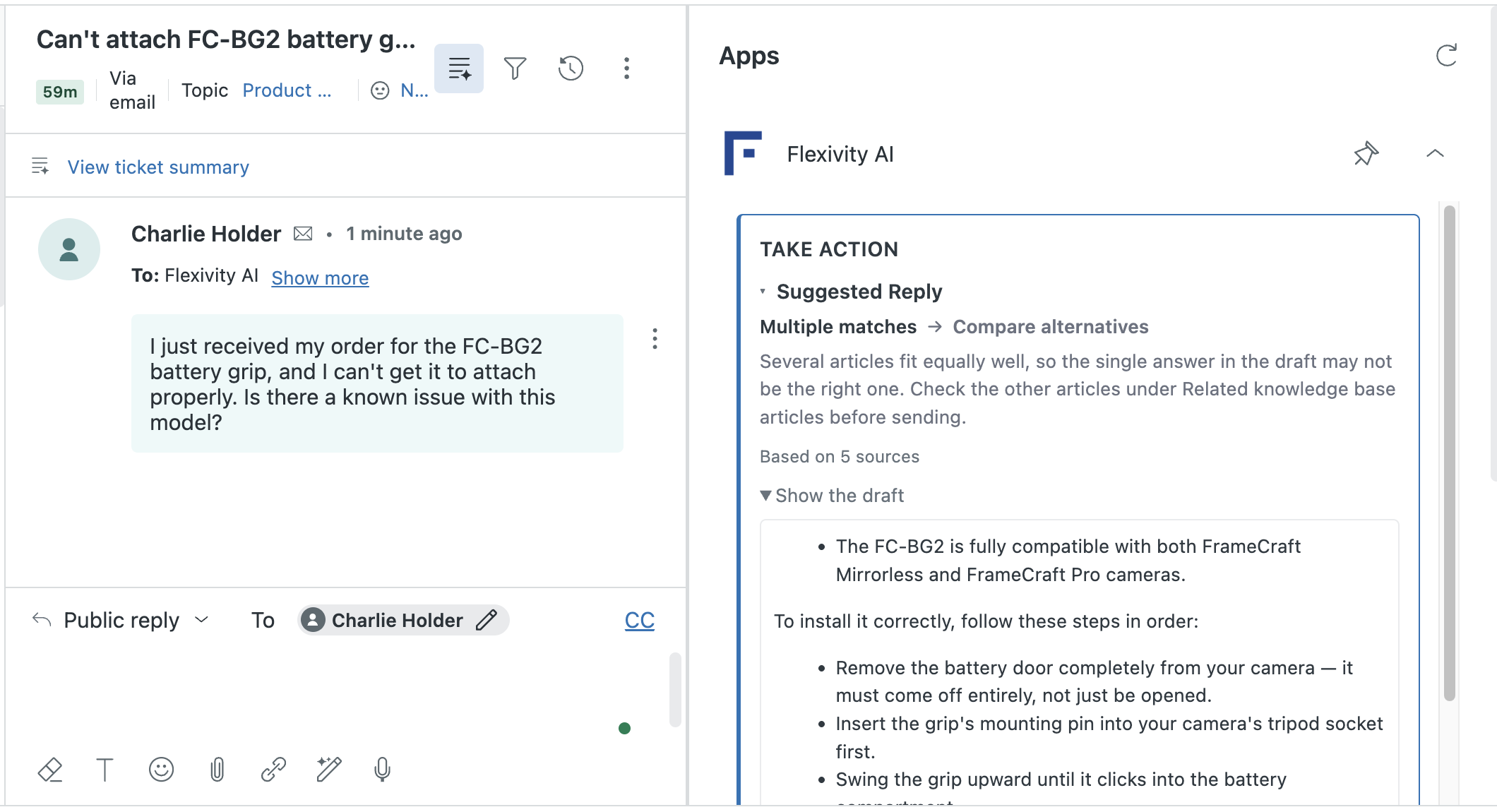
Flexivity’s co-pilot lives inside the ticket view your agents already work. On Zendesk, that’s a sidebar app in the apps panel. On osTicket, that’s a panel on the ticket page. Same session, same login, same URL, same keyboard shortcuts, same workflow around it.
That’s a design choice, not a technical limitation. We could have built a separate web app for agents to open alongside tickets, and some vendors do. The problem with that pattern is adoption: anything that asks an agent to switch tools, remember a second login, or copy context between windows is friction they’ll avoid when they’re busy. Which they always are.
Living inside the help desk means Flexivity shows up in a workflow agents already have. There’s no “open the AI assistant” step. The panel updates as the ticket does — new reply arrives, panel refreshes. No login, no re-auth, no wondering if the context is current.
Onboarding looks like showing your team the new panel in the sidebar. Not training them on a new tool.
Take Action: what to do next, surfaced when needed
The top of the co-pilot panel is Take Action — the surface for whatever the ticket needs from the agent, right now.
At Assist, the primary card is Suggested Reply: the draft the AI prepared from your knowledge base, with the articles and similar tickets it drew on. The agent reads the finding (one article clearly matched, several did, the request is too vague, or no article covers it), opens the draft, and either uses it as-is, edits it in the reply field, or discards it and writes their own. Use this reply copies the draft into the reply field — it never sends anything itself.
On a ticket handed over from the AI, the card explains why — the knowledge base didn’t cover the question, the customer asked for a person, the AI drafted an answer the knowledge base didn’t actually support, the customer was getting frustrated, the conversation reached its limit. Each reason points to a different next step.
On tickets being worked by the AI at Clarify or Resolve, Take Action shows the state of the conversation — what the AI sent, whether it’s waiting for the customer, how many messages remain in the limit. An agent who steps in and replies takes the conversation over; the AI stops.
When nothing needs an agent’s attention, Take Action is hidden. An empty panel means nothing’s waiting. No red dots, no false urgency.
Context: five sections, in order, always
Below Take Action sits the Context pane — the “what should I know before I answer this?” surface. Five parts, always in the same order, open by default.
Sentiment sits in the Context header with a colored dot, visible even when Context is collapsed. The agent sees how the customer feels before they read anything. It updates as the customer writes.
Summary is a short account of the whole conversation — the issue, what’s been tried, where things stand. On tickets at Assist or above, it’s written automatically when the ticket arrives. On a handover from Reply, Clarify, or Resolve, it’s brought up to date so the agent sees what the AI tried. A Refresh button rewrites it from the whole conversation on demand — useful when a ticket’s moved fast and the summary is trailing the latest message.
Attributes shows the values the AI recorded — topic, product, urgency, whatever your admin has set up. The agent can correct any of them inline; the correction saves immediately, the old value shows beside it as was…, and the correction is what the rules use from then on.
Knowledge lists the articles that match the ticket, with links. These are what the AI’s answers are built from. On tickets where no article covered the question, the gap is recorded for the Knowledge Builder. Search the knowledge base is available on demand when an agent wants to look again.
Related tickets show past tickets similar to this one, with links to how your team handled something similar. They’re for reference only — the AI never answers from them, because a closed ticket shows that someone stopped working on it, not that the resolution was right. When no knowledge base article covers the ticket, related tickets show up automatically. Otherwise they’re a click away under Find related tickets.
The Activity Log: a record of what the AI did
Collapsed by default, the Activity Log records what Flexivity did on this ticket — the rules that fired, the attributes it set, the reply it drafted or sent, the handovers it made and why. For most tickets, agents don’t need to look at it. For the ones where they do — a customer complaint about an automated reply, a question from a manager about why a ticket went a particular way — the audit trail is right there.
Where this fits
Progressive Autonomy decides what the AI does with each class of tickets. The co-pilot shapes what happens when a person is involved — which is most tickets, in most deployments, even mature ones.
The two are the same system from different angles. Progressive Autonomy is the ladder of what the AI may do. The co-pilot is the surface where the AI’s work meets human judgment. Both grounded in the same knowledge base, both logged in the same Activity Log, both running in the help desk your team already uses.
Next in this series: Knowledge Builder — the mechanism that finds the questions your knowledge base doesn’t answer, and drafts the articles to fill the gaps. The piece that quietly caps every AI deployment, and the one Flexivity is built to close.
If you want to see the co-pilot in your team’s own Zendesk or osTicket, book a demo or see pricing.
Documentation: AI Context for Zendesk and osTicket.